

How-to: Set up S3 Event Sync
Prerequisites
- Familiar with how S3 Event Sync works? If not, read how S3 Event Sync works before continuing.
- Access to your AWS account with permission to create or modify S3 buckets and bucket policies.
- Your Processor Role ARN and SQS Queue ARN from Zenskar. Both are available under Settings > S3 Setup.
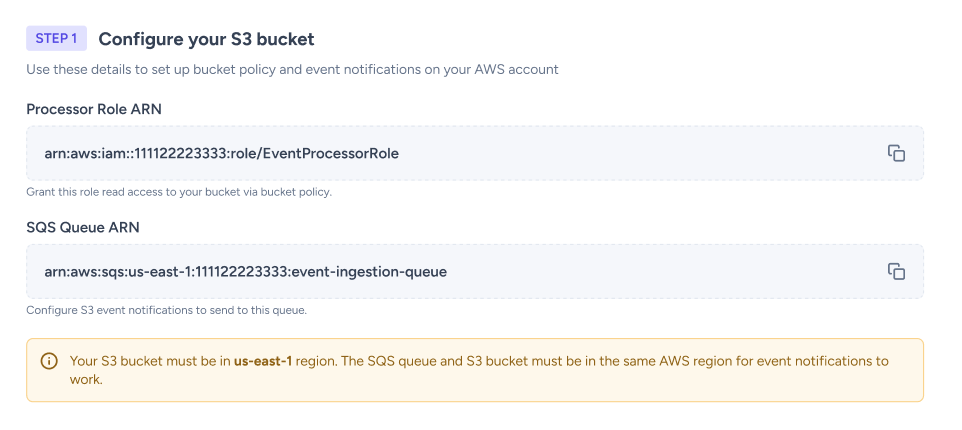
Your S3 bucket must be in us-east-1 (US East, N. Virginia). The integration will not work in any other region.
Part 1: AWS setup
Step 1: Set up your S3 bucket
Option A: Create a new bucket:
- In the AWS Console, switch region to US East (N. Virginia) us-east-1.
- Go to S3 > Create bucket.
- Enter a bucket name (e.g.,
your-org-event-export). - Under Object Ownership, select ACLs disabled (Bucket owner enforced).
- Enable Block all public access.
- Leave all other settings as default > Create bucket.
Option B: Use an existing bucket:
No changes to the bucket are needed. Confirm it is in us-east-1 and have the bucket name ready for Step 2 and Step 5.
Existing files in the bucket will not be processed. Only files uploaded after the integration is configured will trigger event notifications.
Step 2: Add bucket policy for cross-account read access
- Go to your bucket > Permissions > Bucket policy > Edit.
- Apply the following policy, replacing
<PROCESSOR_ROLE_ARN>with the value from Zenskar and<YOUR_BUCKET_NAME>with your bucket name:- If the policy editor is blank: paste the full JSON below.
- If a policy already exists: add only the two
Statementblocks into the existingStatementarray. Do not replace the existing policy.
{
  "Version": "2012-10-17",
  "Statement": [
    {
      "Sid": "AllowProcessorListBucket",
      "Effect": "Allow",
      "Principal": { "AWS": "<PROCESSOR_ROLE_ARN>" },
      "Action": "s3:ListBucket",
      "Resource": "arn:aws:s3:::<YOUR_BUCKET_NAME>"
    },
    {
      "Sid": "AllowProcessorReadObjects",
      "Effect": "Allow",
      "Principal": { "AWS": "<PROCESSOR_ROLE_ARN>" },
      "Action": ["s3:GetObject", "s3:GetObjectAcl"],
      "Resource": "arn:aws:s3:::<YOUR_BUCKET_NAME>/*"
    }
  ]
}- Save changes.
Block all public access does not affect this policy. Zenskar's access is private and authenticated via a specific IAM role, not public access.
Step 3: Configure S3 event notification
Before attempting this step, confirm with your Zenskar contact that the SQS queue has been configured for your bucket. If it has not, AWS will return an error when you try to save.
- Go to your bucket > Properties > scroll to Event notifications > Create event notification.
- Configure the following fields:
| Field | Value |
|---|---|
| Event name | event-file-created |
| Prefix (optional) | Folder path to scope notifications, e.g. events/ |
| Suffix | .csv |
| Event types | All object create events (s3:ObjectCreated:*) |
| Destination | SQS queue |
| SQS queue ARN | Paste the SQS Queue ARN from Settings → S3 Setup in Zenskar |
- Save.
Step 4: Set up a DLQ bucket (recommended)
A DLQ bucket receives files that fail validation, along with error details, so you can review and reprocess them. If you skip this step, ingestion errors will not be captured anywhere.
Create the DLQ bucket:
- Go to AWS Console > S3 > Create bucket.
- Enter a bucket name (e.g.,
your-org-event-dlq). - Set the region to us-east-1.
- Enable Block all public access > Create bucket.
Add bucket policy:
Apply the following policy, replacing <PROCESSOR_ROLE_ARN> and <YOUR_DLQ_BUCKET_NAME>:
{
  "Version": "2012-10-17",
  "Statement": [
    {
      "Sid": "AllowProcessorListBucket",
      "Effect": "Allow",
      "Principal": { "AWS": "<PROCESSOR_ROLE_ARN>" },
      "Action": "s3:ListBucket",
      "Resource": "arn:aws:s3:::<YOUR_DLQ_BUCKET_NAME>"
    },
    {
      "Sid": "AllowProcessorReadWriteObjects",
      "Effect": "Allow",
      "Principal": { "AWS": "<PROCESSOR_ROLE_ARN>" },
      "Action": ["s3:GetObject", "s3:PutObject"],
      "Resource": "arn:aws:s3:::<YOUR_DLQ_BUCKET_NAME>/*"
    }
  ]
}
Save changes.
Part 2: Zenskar setup
Step 5: Register your bucket in Zenskar
- Go to Settings > S3 Setup.
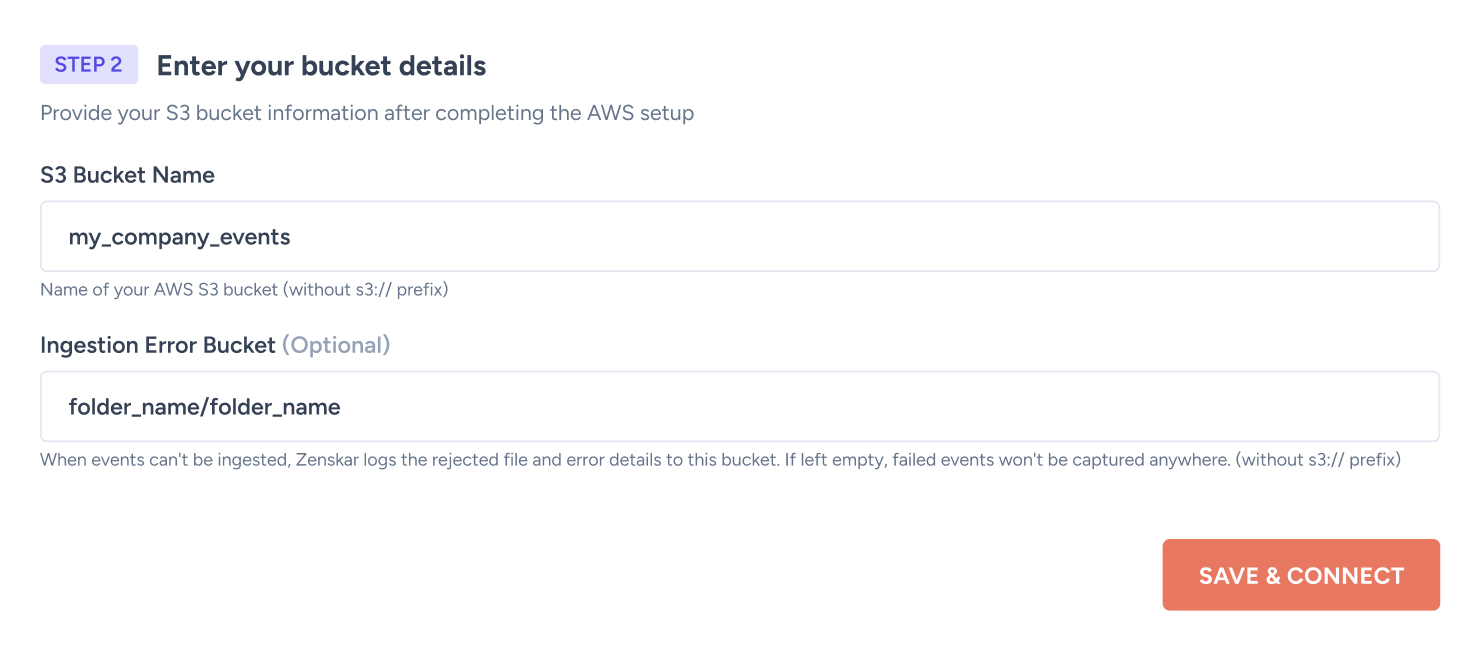
- Enter your S3 bucket name.
- If you created a DLQ bucket in Step 4, enter that bucket name in the Failed Events Bucket field.
- Save.
Zenskar tests the connection automatically after saving:
- If the status shows Connected, the integration is ready. Proceed to Part 3.
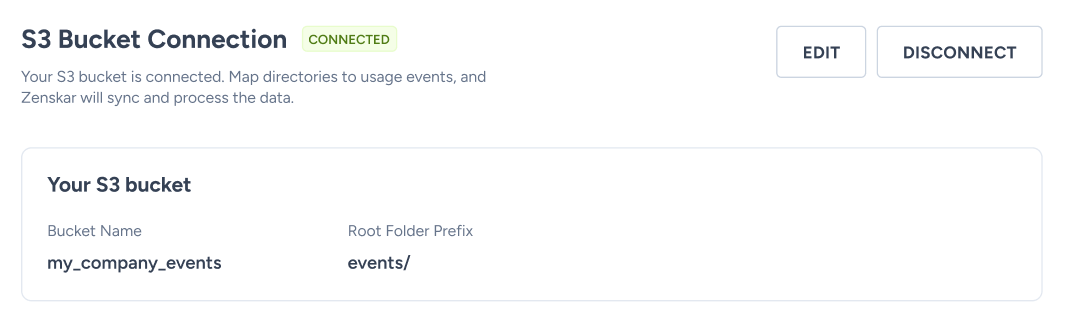
If the status shows Unable to connect to S3 bucket, check the following:

- The bucket name was entered incorrectly. Check for typos.
- The bucket policy from Step 2 was not saved, or
<PROCESSOR_ROLE_ARN>was not replaced with the actual value. - The bucket is not in
us-east-1.
Fix the issue and save again to re-trigger the connection test.
Part 3: Enable S3 ingestion per usage event
The bucket registered in Part 2 is connected at the organisation level. You must also enable S3 ingestion on each usage event and specify the folder in your bucket that contains that event's files.
The directory name you enter must exactly match the folder path in your bucket, including any trailing slashes. A mismatch will cause files to be uploaded but never ingested.
On an existing usage event
- Go to Usage Events > select the usage event.
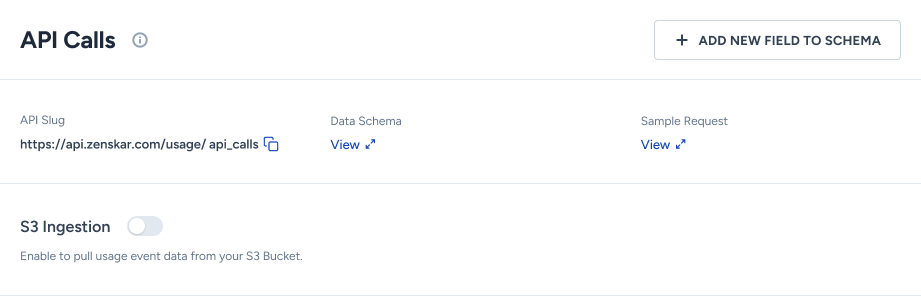
- Enable S3 ingestion.
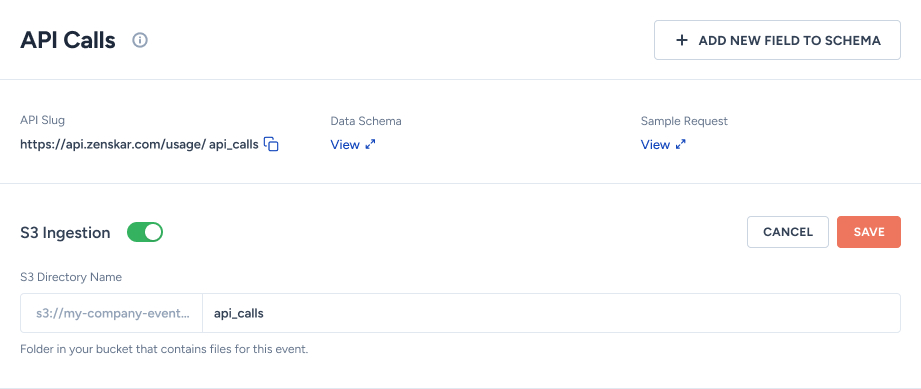
- Enter the directory name: the folder path in your bucket where files for this event are uploaded (e.g.,
events/api-calls/). - Save.
While creating a new usage event
- Go to Usage Events > Create usage event.
- Enable S3 ingestion.

- Enter the directory name for this event.
- Complete and save the usage event.
Verify the integration
Upload a test CSV file to the directory configured for a usage event. Go to the usage event's details page in Zenskar and refresh — ingested events should appear within a few minutes depending on file size.
The connection check in Part 2 only confirms that Zenskar can access your bucket. Uploading a test file is the only way to verify that events are being ingested correctly end-to-end.
File specifications
| Spec | Detail |
|---|---|
| Format | CSV only |
| Maximum file size | 200 MB |
| Multiple files | Preferred over one large file — enables parallel processing |
| Validation | The entire file is rejected if any event fails validation |
Troubleshooting
Symptom | Resolution |
|---|---|
Files are uploaded but no events appear in Zenskar. | Check two things in order: (2) that same folder path exactly matches the directory name on the usage event in Zenskar, including any trailing slashes. A mismatch in either place causes the file to be silently skipped. |
Deleting files from S3 after ingestion. | Safe to do. Once events are ingested they are stored independently in Zenskar and are not linked to the source file. |
Updated 14 days ago